


One mouse. One keyboard. All your screens.
Puente moves your cursor from one computer to the next as if they were one. Copy on one, paste on another: text and files. Across Mac, Windows and Linux, over your local network.
14-day free trial, no sign-up · One-time payment · Free clients

Mouse and keyboard
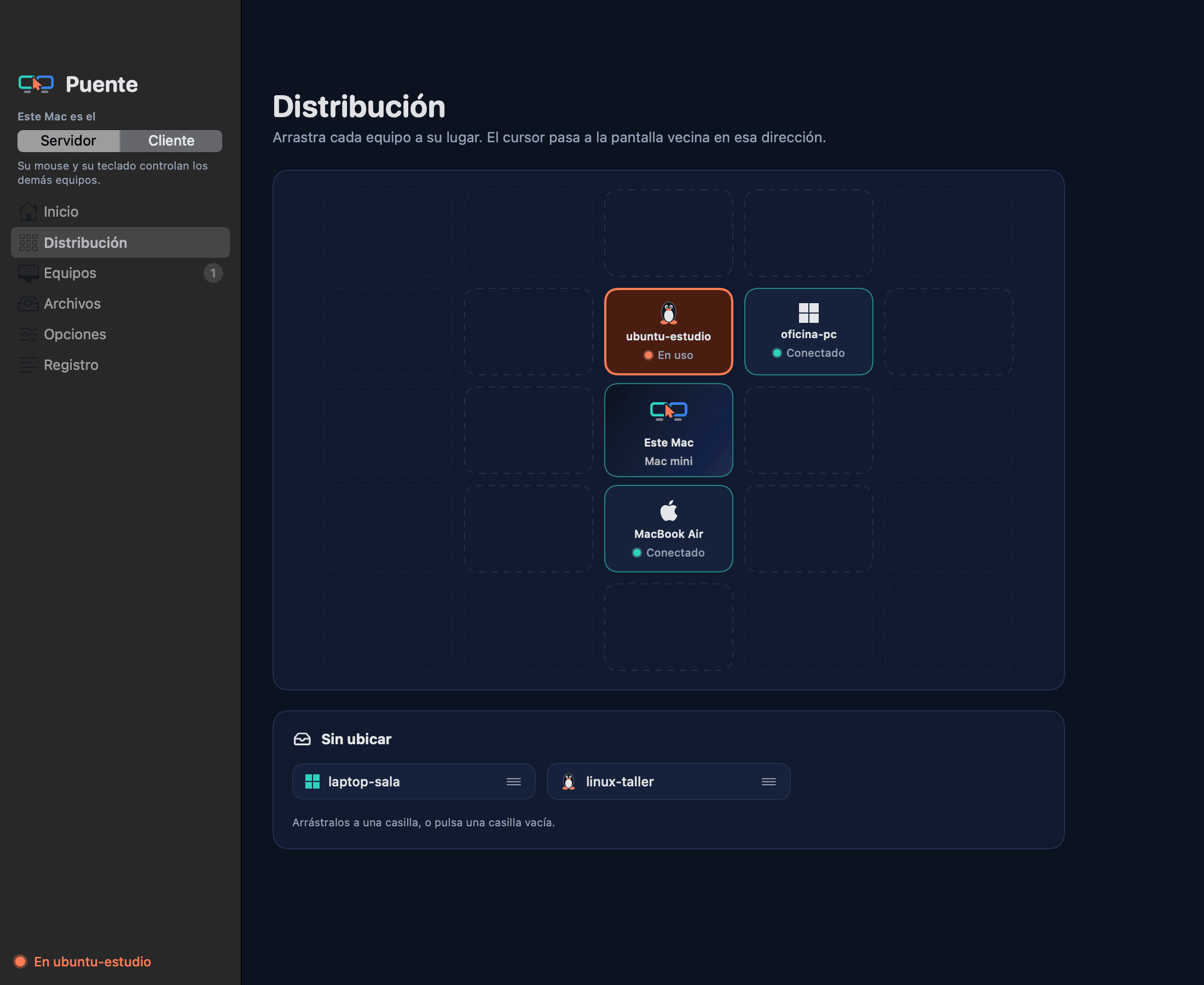
Arrange your screens the way they sit on your desk
Drag each computer to its spot on a 5×5 grid. The cursor moves to the neighboring screen in that direction and hops from one computer to another without going back through the server.
- The server's cursor stays still and hidden while you use another computer.
- Jump back to the server from any computer with ⌃⌥⌘ Esc on a Mac or Ctrl+Alt+Win+Esc on a PC.
- Keys go by their physical position, including ISO keyboards like the Spanish one. On Windows and Linux, ⌘ can act as Ctrl.
- Cursor speed per computer and an optional delay so you don't cross over by accident.
Clipboard and files
Copy on one, paste on another. Files too.
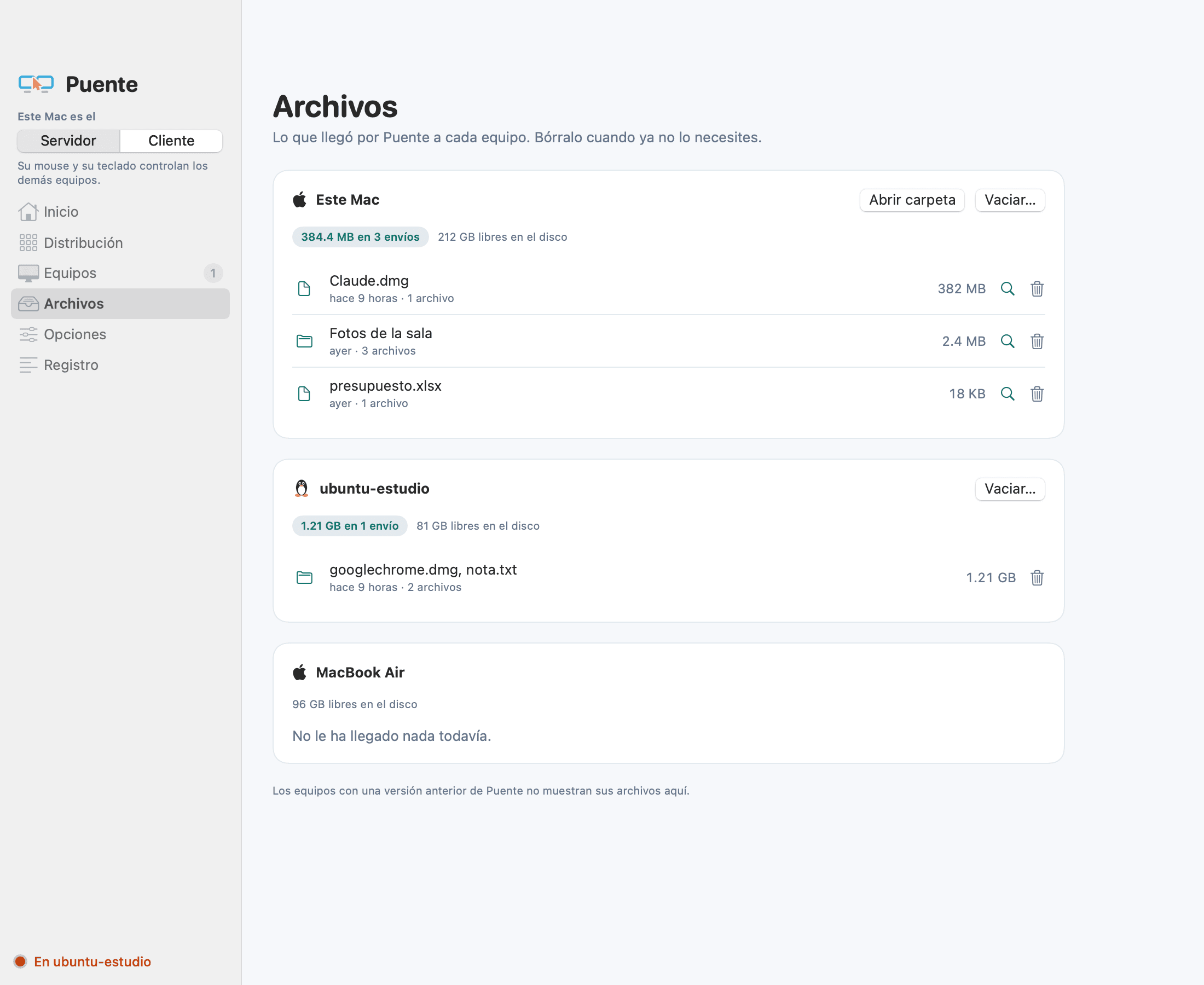
What you copy travels with you: text in both directions and whole files between Finder, Windows File Explorer and Nautilus.
- Copy and paste text and files between computers.
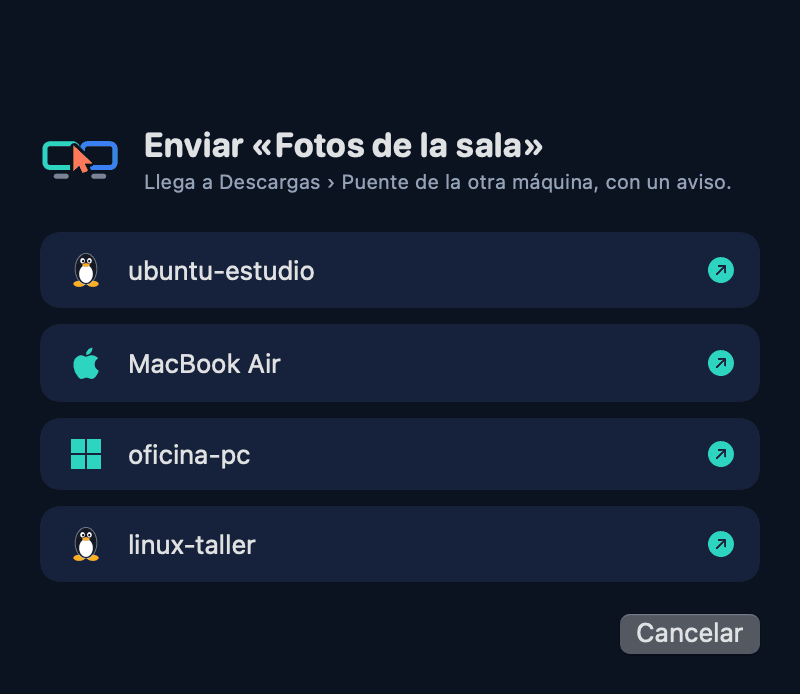
- Right-click → Send with Puente, to the computer you choose.
- On a Mac, drag a file against the edge of the screen and it shows up on the other one.
- A notification when it arrives, and the Files section to see and empty what each computer received.
Connection
Open it and you're set
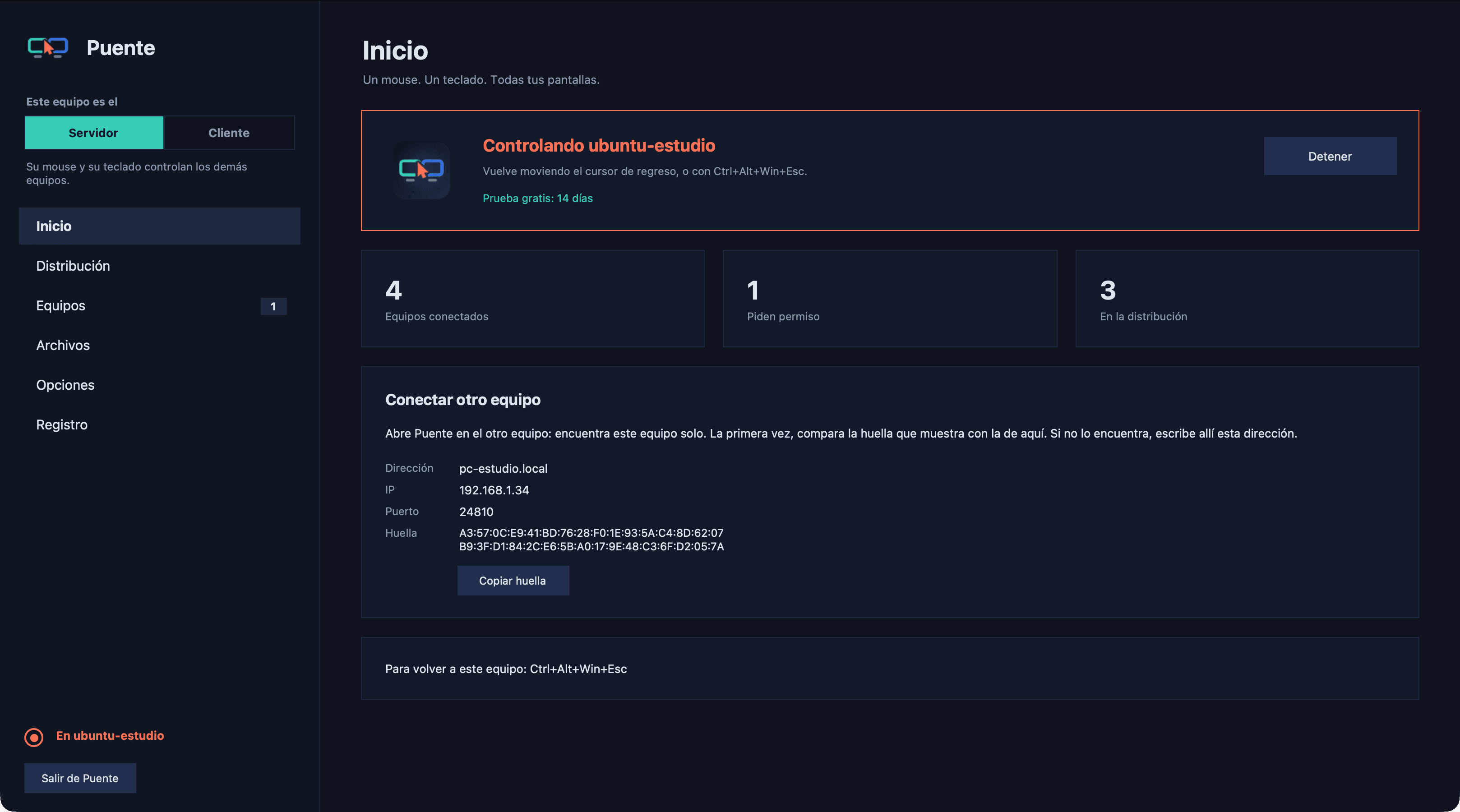
Puente finds the server on your network by itself. The first time, you confirm a 6-digit code and the new computer is placed next to the server.
- Automatic discovery with Bonjour, or by searching your local network if that fails.
- You pair with a 6-digit code: nothing happens until you approve it.
- Opens at login and reconnects by itself if the network drops.

Private by design
Your computers talk to each other. And no one else.
TLS encryption
Everything travels encrypted between your computers.
Local network only
Nothing leaves your home or office.
No account, no cloud
You don't sign up to use it.
You approve every computer
With a code, the first time.
Mac, Windows and Linux
Server and clients, on whatever system you use
The server can be a Mac, a Windows PC or Linux with X11. Clients can be Mac, Windows or Linux with Wayland or X11, several at once.
- In English, Spanish and Portuguese, following your system language.
- An icon in the Mac menu bar and in the Windows system tray.
- Back and forward clicks, scroll wheel and precise trackpad scrolling.
How it works
Up and running in five minutes
- 1
Install Puente on your computers
On the one with the mouse and keyboard, and on the ones you want to control.
- 2
Open it: they find each other
Confirm the 6-digit code the first time. That's all.
- 3
Arrange your screens
Drag each computer to its place on the grid. Done.
Download
Install Puente in a minute
Try it free for 14 days, no sign-up. The same app works as the server and as a client.
Server and client · macOS 14 or later · Apple Silicon and Intel
- 1. Open the .dmg and drag Puente to Applications.
- 2. Open it. The first time, it asks for the Accessibility permission: turn it on.
Or in Terminal:
$ curl -fsSL https://getpuente.app/instalar.sh | bashInstall it with your AI
Using Claude, ChatGPT or another AI? Paste this and it installs Puente for you (or walks you through it step by step):
Install Puente (https://getpuente.app) on this computer. The instructions for you are at https://getpuente.app
Using Claude Code? In a terminal:
$ claude "Install Puente following https://getpuente.app/instalar.md"Pricing
Try it free. If you like it, it's yours for a single payment.
Free trial
14 days
Every feature, no sign-up and no card.
- Mac, Windows and Linux
- Server and clients
- When it ends, buy a license or let it go
Puente
US$24one-time payment
- Up to 3 server computers
- Free, unlimited clients
- Mac, Windows and Linux
- Updates included
- Receipts and invoices in your account
Secure payment with Stripe. Your key arrives by email.
FAQ
What people usually ask
What is Puente?
Puente is an app for Mac, Windows and Linux that lets you use one mouse and one keyboard across several computers on your local network. The cursor moves from screen to screen as if they were one, and copied text and files travel with it. It's an alternative to Synergy, Deskflow and ShareMouse.
What's the server and what's a client?
The server is the computer that has the mouse and keyboard. Clients are the computers you control from it.
How much does it cost?
You can use it free for 14 days, no sign-up. After that it costs US$24, a single payment, with updates included. It's not a subscription.
How many computers can I use it on?
One license activates up to 3 servers. Clients are free and unlimited: connect as many as you like. If you switch servers, deactivate the old one from your account.
What happens when the trial ends?
The server asks for a license key to keep controlling other computers. You buy it here, it arrives by email and you paste it into the app. Clients never need it.
Which systems does it run on?
macOS 14 or later (Apple Silicon and Intel), Windows 10 and 11, and Linux. The server can be a Mac, a Windows PC or Linux with X11; clients can be Mac, Windows or Linux with Wayland or X11.
Do I need internet?
Not to use it: Puente works over your local network. The server only goes online to activate the license and renew it every so often, and if it can't, it keeps working for 14 more days.
Does it work with Wayland?
Linux clients work with Wayland or X11. To use Linux as the server, you need X11.
What about Apple's Universal Control?
Universal Control only links Macs and iPads. Puente links Mac, Windows and Linux. If Universal Control is on, Puente warns you so the two don't clash.
How is it different from Deskflow or Synergy?
Puente connects by itself, pairs with a code, shares files (copy and paste, send or drag) and keeps the server's cursor still while you use another computer.
How do I sign in to my account?
With the email you used to buy: we send you a 6-digit code. There are no passwords.
All your screens, working as one.
Download it and use it free for 14 days. No account, no card.